Tuesday, 11 October 2011

Reset Memory card Password In Nokia


If you have a symbian phone and you have forgotten your memory card then you can easily get your password by using this simple trick.This trick works only on nokia symbian phones not on the java phones.Before starting the tutorial on “Tricks To Reset Memory card Password In Nokia” Here are the the requirements
  • X-plore application (You can easily find its trial version for Free)
  • Nokia symbian mobile phone.
The X-plore application is used to view the data files of the phone.
Here Is the step by step tutorial For resetting the password.
1.       Install the X-plore application in your nokia phone.
2.       Now start your X-plore application and press 0(zero) button and select “ show the system files ”.This will make the X-plore application to show your system files.
3.       After completing the above step goto C:/Sys/Data/MmcStore
4.       Now press 3 button from your keypad and you will see options.Now click on the Hex-viewer option.This will make your phone to show files in hexadecimal.
5.       Look at the 3rd Column On the screen you will see a code like ! TMSD02G (c??”?x???6?2?6?2?6)  .Note down the numbers present between the ?.This is your memory card password.Like in this example the password is 62626.
6.       Now you can enter the password and view your memory card files or you can reset  your memory card password to a more memorable password.
Remember you can gain access to C:/Sys/Data/ if and only if you have set a password on your memory card

How to Use Mobile Camera As Webcam


Now A days everybody owns a mobile phone with camera.And it is really interesting and simple to use your mobile phone  camera as webcam for your yahoo,gtalk or any other messenger.So if you dont have a webcam and doesnot want to waste money on buying a new one then this is the best solution for you.For using your mobile camera as a webcam you need to have a symbian mobile phone or a windows mobile phone as the application that we will be using only works on the symbian or windows platform.This application is free to download and use.Moreover,It is an open source project .
smartcam0 How to Use Mobile Camera As Webcam
The Download Link For this application Is given below
For Smartcam to work you have
1.Install it in both your computer and mobile phone.
2.Bluetooth in your mobile and computer.
First download and install the windows file in your computer and then mobile file in your mobile phone.Now connect both the devices using bluetooth.
Now you can use your mobile phone camera as a webcam.
Here is the list of nokia phones that it might support
5320 XpressMusic
6210 Navigator
6220 classic
6650
N78
N96
= = = = = = = =
** S60 3rd Edition, Feature Pack 1 **
(OS v9.2)
5700 XpressMusic
6110 Navigator
6120 classic
6121 classic
6124 classic
6290
E71 (320×240)
E66
E51
E90 Communicator (800×352)
N76
N81
N81 8GB
N82
N95
N95 8GB
N95-3 NAM
= = = = = = = =
** S60 3rd Edition (initial release) **
(OS v9.1)
3250 (176×208)
5500 Sport (208×208)
E61 (320×240)
E61i (320×240)
E62 (320×240)
E50
E65
N71
N73
N77
N91 8GB (176×208)
N92
N93
N93i
E60 (352×416)
E70 (352×416)
N80 (352×416)
= = = = = = = =
** S60 3rd Edition **
(OS v9.1)
N75
N91 (176×208)
= = = = = = = = = = = = = = = = =
[*[*[*[ S60 2nd Edition ]*]*]*]
176×208 resolution
= = = = = = = =
** S60 2nd Edition, Feature Pack 3 **
(OS v8.1a)
N70
N72
N90 (352×416)
= = = = = = = =
** S60 2nd Edition, Feature Pack 2 **
(OS v8.0a)
6630
6680
6681
6682
= = = = = = = =
** S60 2nd Edition, Feature Pack 1 **
(OS v7.0s)
3230
6260
6620
6670
7610
= = = = = = = =
** S60 2nd Edition (initial release) **
(OS v7.0s)
6600
= = = = = = = = = = = = = = = = =
[*[*[*[ S60 1st Edition ]*]*]*]
176×208 resolution
(OS v6.1)
3600
3650
3660
3620
7650
N-Gage
N-Gage QD
= = = = = = = = = = = = = = = = =
[* [* [* [ S80 Devices ] *] *] *]
= = = = = = = = = = = = = = = = =
[*[*[*[ S80 2nd Edition ]*]*]*]
(OS v7.0s)
9300i (640×200)
9300 (640×200)
9500 (640×200)
= = = = = = = = = = = = = = = = =
Other Series
sometimes call S90 (in fact no S90 of Developer Platform)
(OS v7.0s)
7710 (640×320)
(OS v6.0)
9210c Communicator (640×220)
9210i Communicator (640×220)
9290 Communicator (640×220)
= = = = = = = = = = = = = = = = =

Friday, 7 October 2011

LOST OR FORGOTTEN WINDOWS PASSWORD

Disclaimer: Gaining access to an account or computer that is not yours without permission by using any of the below steps is against the law. This document was created for users who've forgot their own computers Windows password. Additional legal information and policy information can be found on our legal page.
There are various utilities that enable a user to gain access to a computer they have forgotten the password to, below is a listing of some of the more popular utilities available.

Log into an alternate account

Often many users will leave the administrator account alone or have other accounts with administrator rights. If you're not logging into the computer as administrator or have other accounts follow the below steps to reset your other accounts password.
  1. Reboot the computer into Safe Mode.
  2. When logging into Safe Mode you should be prompted with an option to what account you wish to use. Select the Administrator account. If prompted for a password try pressing Enter on the keyboard for no password. If this does not work, try other passwords you may have used. If you're unable to log into the Administrator account skip to the next suggestion.
  3. Once you've logged into the Administrator account open Control Paneland User Accounts.
  4. In User Accounts select the account you wish to change the password for, click change password and then enter the new password or click remove the password to remove the password from the account.
Windows XP users and Prevent a forgotten password option
If you have Windows XP (or above) and have gone through the "prevent a forgotten password option" and have created a diskette, use the diskette created to recover the forgotten password.

Offline NT Password & Registry editor
The offline NT password & registry editor is a great utility that enables users to overwrite their Windows NT, 2000, and XP SAM file, the file containing their passwords, with a new password. This will not allow a user to view their previous password, however, it will allow the user to gain access to their unencrypted files again.
This utility is free and can be found on the below link.
Emergency Boot CD
In addition to several other features, the EMCD, or Emergency Boot CD, is capable of changing the passwords of any user, including the administrator password in Windows NT, 2000, and XP without needing to know the previous password.
This utility is free and can be found on the below link.
Other utilities
There are numerous other free and commercial utilities available for bypassing or changing an unknown password in Microsoft Windows NT, 2000, and XP. The above two utilities are the more popular solutions and are highly recommended. If these utilities do not suit your needs, you may also want to perform a quick search on your favorite search engine
Data recovery
If you have tried the above suggestions and are unable to gain access to the files you need to access, some data recovery companies may be able to access your data. 
Format and reinstall Windows on the computer
Finally, if after the above steps you are still unable to gain access to your computer, or if you are unable to use any of the above utilities, unfortunately, your only alternative to getting access to your computer would be to erase everything on the computer and reinstall Windows. Any data you need access to will need to be restored from your backups.

What is csrss.exe?


A Microsoft Windows file stored in the c:\windows\system32 or c:\winnt\system32 directory that has the file description: "Client Server Runtime process." This file
Is this file a spyware, trojan, or virus?
The csrss.exe file included with Microsoft Windows is not spyware, a trojan, or a virus. However, like any file on your computer it can become corrupted by a virus, worm, or trojan. antivirus programs can detect and clean this file if it has become infected. Because this file is part of Microsoft Windows users should never delete or remove this file if they think it is infected, let the antivirus program handle it.
Is it safe to remove csrss.exe from the Task Manager processes?
No. The csrss.exe is a critical system process that cannot be removed from the Task Manager without causing issues with Windows. When attempting to End Process the csrss.exe you will receive the Unable to Terminate Process window with the error "This is a critical system process. Task Manager cannot end this process." It is normal to receive this error.
The csrss.exe file is using 99%, 100%, or other high abnormal percentage of CPU.
This issue is caused when your Microsoft Windows profile is corrupt. To resolve this issue requires that you delete and recreate the profile. To do this follow the below steps.
  1. Backup all the files in My Documents as they will be lost. It's also recommended you backup any other important files you may be concerned about loosing.
  2. Log out of the account that is causing the problem and into a different account. If you do not have another account you can create a new account through the User Accounts icon in the Control Panel.
  3. Once in the other account right-click My Computer icon and clickProperties.
  4. In the Properties window click the Advanced tab.
  5. In Advanced click the Settings button under User Profiles.
  6. Finally, in the User Profiles window highlight the name of the profile that is encountering this issue and click the Delete button.
Once the profile has been deleted you can recreate it if you wish to use the same profile name.

GOOGLE TRICKS


Definitions
Pull up the definition of the word by typing define followed by the word you want the definition for. For example, typing: define bravura would display the definition of that word.
Local search
Visit Google Local enter the area you want to search and the keyword of the place you want to find. For example, typing: restaurant at the above link would display local restaurants.
Phone number lookup
Enter a full phone number with area code to display the name and address associated with that phone number.
Find weather and movies
Type "weather" or "movies" followed by a zip code or city and state to display current weather conditions or movie theaters in your area. For example, typing weather 84101 gives you the current weather conditions for Salt Lake City, UT and the next four days. Typing movies 84101 would give you a link for showtimes for movies in that area.
Track airline flight and packages
Enter the airline and flight number to display the status of an airline flight and it's arrival time. For example, type: delta 123 to display this flight information if available.
Google can also give a direct link to package tracking information if you enter a UPS, FedEx or USPS tracking number.
Translate
Translate text, a full web page, or search by using the Google Language Tools.

Find PDF results only
Add filetype: to your search to display results that only match a certain file type. For example, if you wanted to display PDF results only type:"dell xps" filetype:pdf -- this is a great way to find online manuals.
Calculator
Use the Google Search engine as a calculator by typing a math problem in the search. For example, typing: 200 + 200 would display results as 300.
Stocks
Quickly get to a stock quote price, chart, and related links by typing the stock symbol in Google. For example, typing: msft will display the stock information for Microsoft.

FACEBOOK TIPS


Hide users, games, polls, etc.
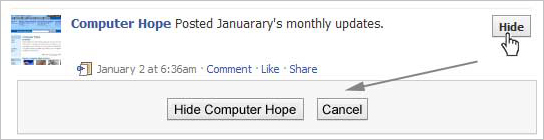
It quickly gets annoying seeing some users posts, game invites, polls, etc. Hovering your mouse to the right of the post and clicking the Hidebutton as shown below can hide any post. Once this button is pressed you'll be prompted with the option to hide that user or in the case of a Facebook application the option to hide that application from ever showing up on your profile.
Hide Facebook users, games, polls, etc.
To unhide someone or unblock an application click the Edit Optionslink in the bottom right corner of the news feed as shown below.
Facebook unhide friends
Greasemonkey and FB Purity
Although Facebook does not allow the ability to hide friends getting new friends messages, friends becoming fans of something, and some application messages they can still be hidden with browser add-ons. If you're running Mozilla Firefox, Chrome, Opera, or Safari we suggest installing the Facebook Purity add-on.
Update your privacy settings
Click Account in the top right corner of the Facebook window and then click Privacy settings to adjust who is capable of seeing what on your Facebook profile. We highly recommend going through all the privacy settings to verify your privacy is properly protected.
Anything that is not set to friends only or friends of friends can be seen by anyone searching on the Internet. Below is a few things we recommend for most users.
  1. Under Search in Privacy settings uncheck Public Search Results. This will prevent users from finding your account and profile picture in search results such as Google
  2. Under Application settings, make sure you're only allowing applications you want to have access to your information. Applications that you grant rights to can have access to your Facebook profile information.
  • If you're curious to see how a program or web page connect to the Facebook API can see your profile see Tip135.
Use the Facebook top bar for navigation
Facebook navigation
Knowing how to properly navigate is vital if you want to get the most out of Facebook. Below is a brief description of each of the available options in the top bar as shown above.
Home (facebook logo) - Clicking this logo will take you to your wall (News Feed) that shows all friends recent posts.
Friend requests - If any friend requests are waiting to be approved this icon will show a notification of how many friends are waiting for approval. This icon can also be clicked when you want to view any friend recommendations or search for friends on Facebook.
Messages - This section allows you to send and receive private messages between one or more people you're friends with.
Notifications - Any time a friend or Facebook application creates a new post you'll be notified in this section. Clicking this icon will show all recent notifications. If you wish to change what is capable of sending you notifications including any Facebook applications or games click theSee All Notifications link at the bottom and check or uncheck what you want to be notified on.
Search - Finally, the search box in Facebook can be a powerful tool that can be used to quickly find any current friends or people on Facebook. In addition searching for terms such as a company name, product, sports team, music band, etc. will find fan pages and groups that can be joined.
Modify your account notifications
Keep your e-mail and your cell phone clean by updating or eliminate Facebook notifications or keep more up-to-date by adding new notifications. Facebook notifications can be added and removed by clicking Account link in the top right corner, then Account Settings, and then clicking the Notifications tab.
Top News and Most Recent
Facebook News and most Recent
By default Facebook will display your wall postings in the News format, which means it only displays posts it believes are most relevant to you. These results are based on your past interaction with your friends. If you want to see every post made by all your friends that are not hidden click the Most recent link in the upper right section of your news feed as shown in the above picture example.
If you want to adjust who shows up manually click the Edit Options in the bottom right corner of your news feed.
Facebook unhide friends
View High School work friends
If you've added your High School or previous Work locations to your profile, quickly see all classmates and co-workers on Facebook by clicking the link in your Info tab under your profile.
Quickly change profile picture
Your profile picture can be quickly changed to any other picture by visiting your profile, hovering the mouse over your current profile picture, and clicking the Change Picture link that appears in the top right corner of the picture.
Don't post private information on friend's walls on in comments
When you make a post on a friend's wall or in any of their comments realize that any of their friends are going to be able to see that post. If you wish for something to remain only between you and a friend send them a Facebook message instead.
Suggestions and random friend invites
As you get more friends on Facebook it will begin making friend, groups, and fan suggestions. These are suggestions made by Facebook and not your friends. Unless these are something you're interested in they can be ignored.
This same rule can be applied to people who may want to be your friend that you don't know. If you don't know someone don't accept his or her friend invite. Once someone becomes your friend they'll have access to any information your friends are capable of seeing.
Tag your Facebook friends in your photos
Always make sure to tag any of your Facebook friends that are in pictures you upload. However, never tag someone who is not in the picture. When someone is tagged in a photo that picture is automatically added to that persons profile and is a great way to share pictures with all friends.

USES OF F1 TO F12 keys


Commonly known as "function keys", F1 through F12 may have a variety of different uses or no use at all. Depending on the installed operating system and the software program currently open will change how each of these keys operate. A program is capable of not only using each of the function keys, but also combining the function keys with the ALT or CTRL key, for example, Microsoft Windows users can press ALT + F4 to close the program currently active.
Below is a short-listing of some of the common functions of the functions keys on computers running Microsoft Windows. As mentioned above not all programs support function keys and may perform different tasks then those mentioned below. If you are looking for more specific shortcut keys and function key examples we suggest seeing our shortcut key page.
F1
  • Almost always used as the help key, almost every program will open the help screen when this key is pressed.
  • Enter CMOS Setup.
  • Windows Key + F1 would open the Microsoft Windows help and support center.
  • Open the Task Pane.
F2
  • In Windows commonly used to rename a highlighted icon or file.
  • Alt + Ctrl + F2 opens a new document in Microsoft Word.
  • Ctrl + F2 displays the print preview window in Microsoft Word.
  • Enter CMOS Setup.
F3
  • Often opens a search feature for many programs including Microsoft Windows.
  • In MS-DOS or Windows command line F3 will repeat the last command.
  • Shift + F3 will change the text in Microsoft Word from upper to lower case or a capital letter at the beginning of every word.
F4
  • Open find window.
  • Repeat the last action performed (Word 2000+)
  • Alt + F4 will close the program currently active in Microsoft Windows.
  • Ctrl + F4 will close the open window within the current active window in Microsoft Windows.
F5
  • In all modern Internet browsers pressing F5 will refresh or reload the page or document window.
  • Open the find, replace, and go to window in Microsoft Word.
  • Starts a slideshow in PowerPoint.
F6
  • Move the cursor to the Address bar in Internet Explorer and Mozilla Firefox.
  • Ctrl + Shift + F6 opens to another open Microsoft Word document.
F7
  • Commonly used to spell check and grammar check a document in Microsoft programs such as Microsoft Word, Outlook, etc.
  • Shift + F7 runs a Thesaurus check on the word highlighted.
  • Turns on Caret browsing in Mozilla Firefox.
F8
  • Function key used to enter the Windows startup menu, commonly used to access Windows Safe Mode.
F9
  • Opens the Measurements toolbar in Quark 5.0.
F10
  • In Microsoft Windows activates the menu bar of an open application.
  • Shift + F10 is the same as right-clicking on a highlighted icon, file, or Internet link.
  • Access the hidden recovery partition on HP and Sony computers.
  • Enter CMOS Setup.
F11
  • Full-screen mode in all modern Internet browsers.
  • Ctrl + F11 as computer is starting to access the hidden recovery partition on many Dell computers.
  • Access the hidden recovery partition on eMachines, Gateway, and Lenovo computers.
F12
  • Open the Save as window in Microsoft Word.
  • Shift + F12 save the Microsoft Word document.
  • Ctrl + Shift + F12 prints a document in Microsoft Word.
Tip Earlier IBM computers also had F13 - F24 on the keyboards. However, because these keyboards are no longer used they are not listed on this page.